
For mac · One-time purchase
Every window,
exactly where you want it.
Hold Shift, start dragging a window, and a menu appears under your cursor. Move to the spot you want. Let go. The window is there.
No shortcuts to memorise. No grid to line up by hand. No more dragging a window three times to get it half-right.
And it learns. After a few days the menu opens with the layout you usually pick for that app already selected — so the move you make most often becomes hold and release.
One payment, yours forever. 30-day refund, no questions asked.
Your Mac does halves and quarters.
Most work doesn’t fit either.
A browser at two-thirds with notes beside it. Three columns of code. A video call pinned to the top third while you work underneath. macOS can’t make those shapes. Window Organizer can — and it ships with them ready to go.
Three seconds to learn. Then you never think about it again.
-
1
Start dragging a window
Grab any window’s title bar the way you always do, with Shift held down.
-
2
The menu opens at your cursor
Right where you’re already pointing — not in a corner you have to travel to. Move toward the spot you want and it lights up.
-
3
Let go
The window lands exactly on the region you picked, edge to edge, every time.
Prefer a keyboard shortcut? Switch the trigger in Settings and hold that instead. Prefer a different key to Shift? Change it. It’s your Mac.
Nobody else does this
It opens on the one you were going to pick.
You already have habits. The browser goes on the right. The terminal goes bottom left. The notes window gets maximised. Window Organizer notices, and the next time you grab that window the menu opens with that layout already selected.
Which means the move you make twenty times a day stops being a gesture at all. Hold, let go, done — and it’s still the same menu, so the other seven layouts are exactly where they always were when you want a different one.
It watches more than just which app. Where the window is right now matters too: send a left-half window to the right half often enough and it will offer the right half — but only when the window is actually on the left.
- Learns from your last 500 window moves, kept on your Mac and nowhere else
- Says nothing until it’s sure — a new install behaves exactly as before
- Adds a fraction of a millisecond to opening the menu. You will not feel it.
- One switch in Settings turns it off, and your layouts are untouched either way
No other Mac window manager we could find does this. They all open the same way every time, no matter how many times you’ve made the same move.
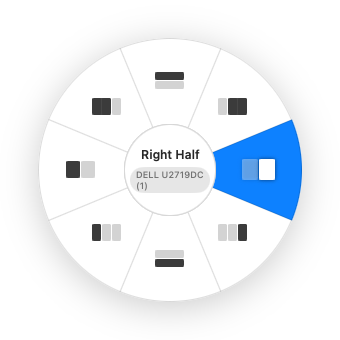
Draw the layout you actually want.
Set how many columns and rows you want, then click or drag across the cells to mark where the window should go. That’s the whole editor. What you draw is exactly what you get.
Every layout keeps its own grid, so a half and a third can happily live side by side in the same menu — something you can’t do with a single fixed grid.
- Name each layout whatever makes sense to you
- Reorder them so your favourites sit under your thumb
- Eight ready-made layouts included — edit or replace any of them
Two screens? Three? It already knows.
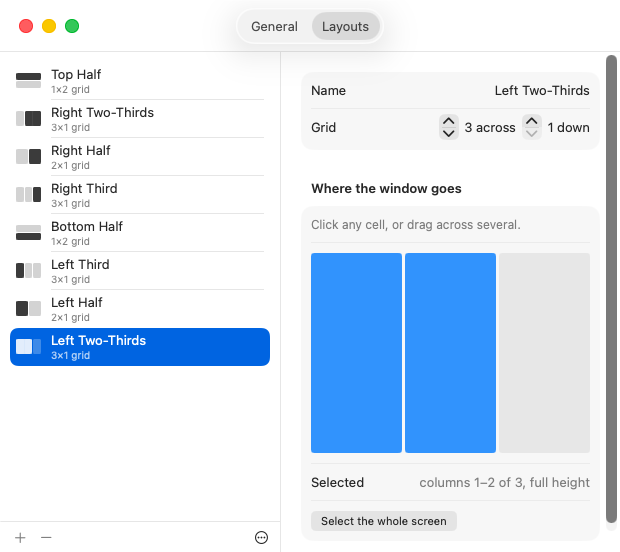
The menu opens on whichever display your cursor is on, and tells you which one it’s about to use. Keep dragging onto another screen while the menu is open and it follows you there — the layout applies to that display.
Plug in a monitor, unplug it, dock, undock, sleep and wake. Your layouts survive all of it.
Multi-monitor support is simply part of the app. It is not a paid tier, and it never will be.
Quiet by design.
It stays out of the way
Lives in your menu bar. No Dock icon, no window to manage, nothing bouncing for attention.
Nothing leaves your Mac
No analytics, no accounts, no telemetry. What it learns about your habits is a small file on your own disk — never uploaded, never synced, and off with one switch. The only thing it sends is a brief licence check about once a month.
One permission, asked once
macOS needs your say-so before any app can move windows. We ask for exactly that, explain why, and never nag again.
It won’t fight macOS
Apple’s own drag-to-the-edge tiling keeps working exactly as before. The two live side by side.
Settings you’ll visit once
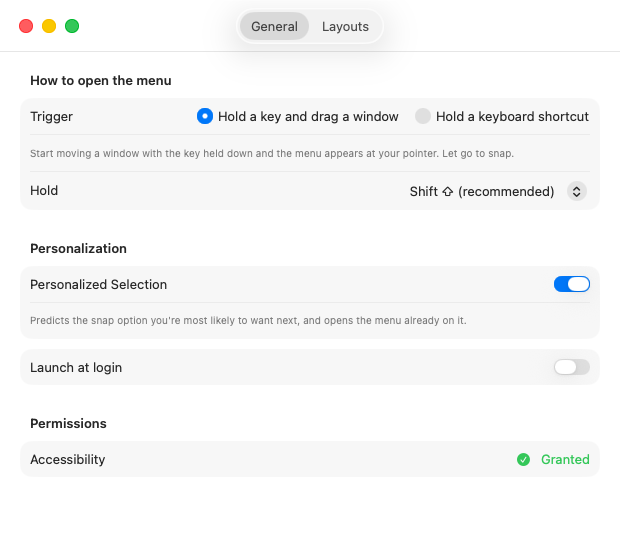
There isn’t much to configure, and that’s the point. Choose how the menu opens, whether it should learn your habits, whether the app starts with your Mac, and get on with your day.
The one permission macOS requires is right there with its status, so you can always see it’s working — no hunting through System Settings to find out.
One price. No surprises.
$4.99
One-time payment · not a subscription
- Every feature, including multi-monitor
- For one Mac — move it to a new one anytime
- Free updates
- No account, ever, and it works offline
- 30-day refund, no questions asked
Secure checkout by Paddle. Card, PayPal and Apple Pay accepted. Your licence key appears on screen the moment you pay.
Apple silicon and Intel · macOS 13 or later · No account, no subscription, no tracking
There’s no trial, and that’s deliberate — a licence key you have to install and then uninstall is a worse experience than simply buying it and changing your mind. If it isn’t for you, email us inside 30 days and you get your money back.
Questions about buying
What happens right after I pay?
The checkout closes and you land on a confirmation page with your licence key on it, ready to copy. The same key is emailed to you straight away as a backup. Open Window Organizer, paste the key, and you’re done — it takes about ten seconds.
Is this a subscription? Will I be charged again?
No. It is a single payment of $4.99 and it never repeats. There is no plan to cancel and no card kept on file for renewals.
Do I have to create an account?
No. You enter an email address so we can send your licence key, and that’s the extent of it. There is no password, no profile, and nothing to log into — the app itself has no accounts at all.
Who actually takes the payment?
Paddle. They are the merchant of record, which means they are the ones handling the card, the receipt and the tax — their name is what appears on your statement. Your card details go directly to them and never touch this site.
Which payment methods can I use?
Credit and debit cards, PayPal, and Apple Pay or Google Pay where your device supports them. The exact list is shown in the checkout and depends on your country.
Will I be charged tax or VAT on top?
That depends on where you are. Any VAT or sales tax is calculated and shown in the checkout before you confirm, so the total you see is the total you pay. Buying for a business? There’s a field for your VAT or tax ID in the checkout, and your invoice will include it.
Can I use it on more than one Mac?
Each licence activates on one Mac at a time. Getting a new Mac? Open Window Organizer on the old one, choose Licence… → Deactivate This Mac, then enter your key on the new one. If the old Mac is lost or broken, email us and we’ll free your licence straight away. To use it on two Macs at the same time, you’d need a second licence.
What if I lose my licence key?
Nothing is lost. Search your email for the receipt from Paddle, or use the key recovery page — enter the email address you bought with and your key is sent again. Failing that, email appdevbymwc@gmail.com and we’ll sort it out.
How do refunds work?
Email appdevbymwc@gmail.com within 30 days and we’ll refund you in full. You don’t need to give a reason and we won’t ask for one. Refunds go back to your original payment method through Paddle, usually within a few working days. The full refund policy has the details.
Do future updates cost extra?
Every update to version 1 is free, and the app installs them for you. If there is ever a paid version 2, your version 1 licence keeps working on version 1 indefinitely — buying an upgrade would be your choice, not a condition of continuing to use what you paid for.
Does it need an internet connection?
Hardly at all. It connects once to activate your licence on your Mac, and then briefly about once a month to confirm it. In between it works completely offline. If you’re offline when a check is due, it carries on working for another 14 days and finishes the check the moment you reconnect. Even opening it for the very first time with no connection works — it unlocks for 7 days and activates itself once you’re back online.
Which Macs does it run on?
Any Mac running macOS 13 Ventura or later, on both Apple silicon and Intel. It’s a universal app, signed and notarised by Apple, so it installs without warnings.
Still unsure? Email appdevbymwc@gmail.com — a real person reads it.
Stop nudging windows around.
Buy it once, and every window goes where you want it from now on.
macOS 13 or later · Apple silicon & Intel · 30-day refund